

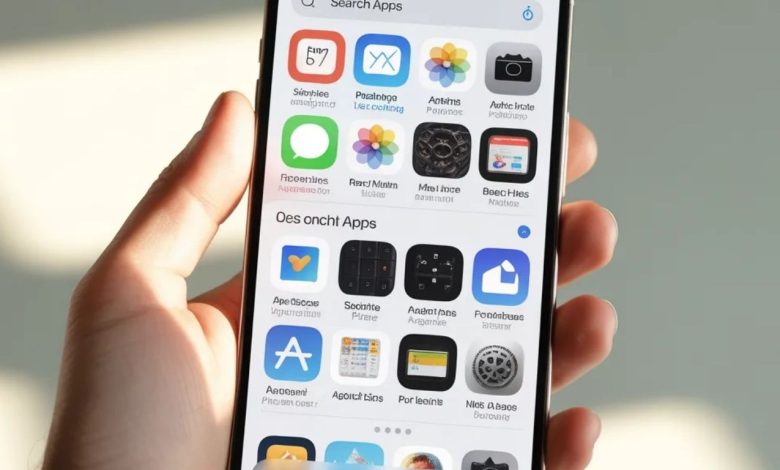
Have you ever opened your iPhone, searched for an app you know you installed, and suddenly… it’s gone? Don’t worry—you’re not alone. Many people hide apps intentionally or accidentally and then struggle to find them later. The good news? Learning how to unhide app on iPhone is much easier than you might think.
Think of your iPhone like a closet. Sometimes things get pushed to the back—not lost, just hidden. All you need is to know where to look. In this detailed guide, I’ll walk you through every possible way to unhide an app on your iPhone. Whether the app was removed from the Home Screen, hidden in App Library, restricted by Screen Time, or tucked away in settings—we’ll cover it all.
Let’s get started.
Why Do Apps Get Hidden on iPhone?
Before learning how to unhide app on iPhone, let’s understand why apps disappear in the first place.
Apps may be hidden because:
-
You removed them from the Home Screen
-
They’re only available in App Library
-
Screen Time restrictions are enabled
-
Someone else restricted access
-
The app was accidentally deleted
-
A software update changed layout settings
Sometimes it’s intentional. Sometimes it’s a mystery. Either way, your app is usually still there.
How to Unhide App on iPhone from App Library
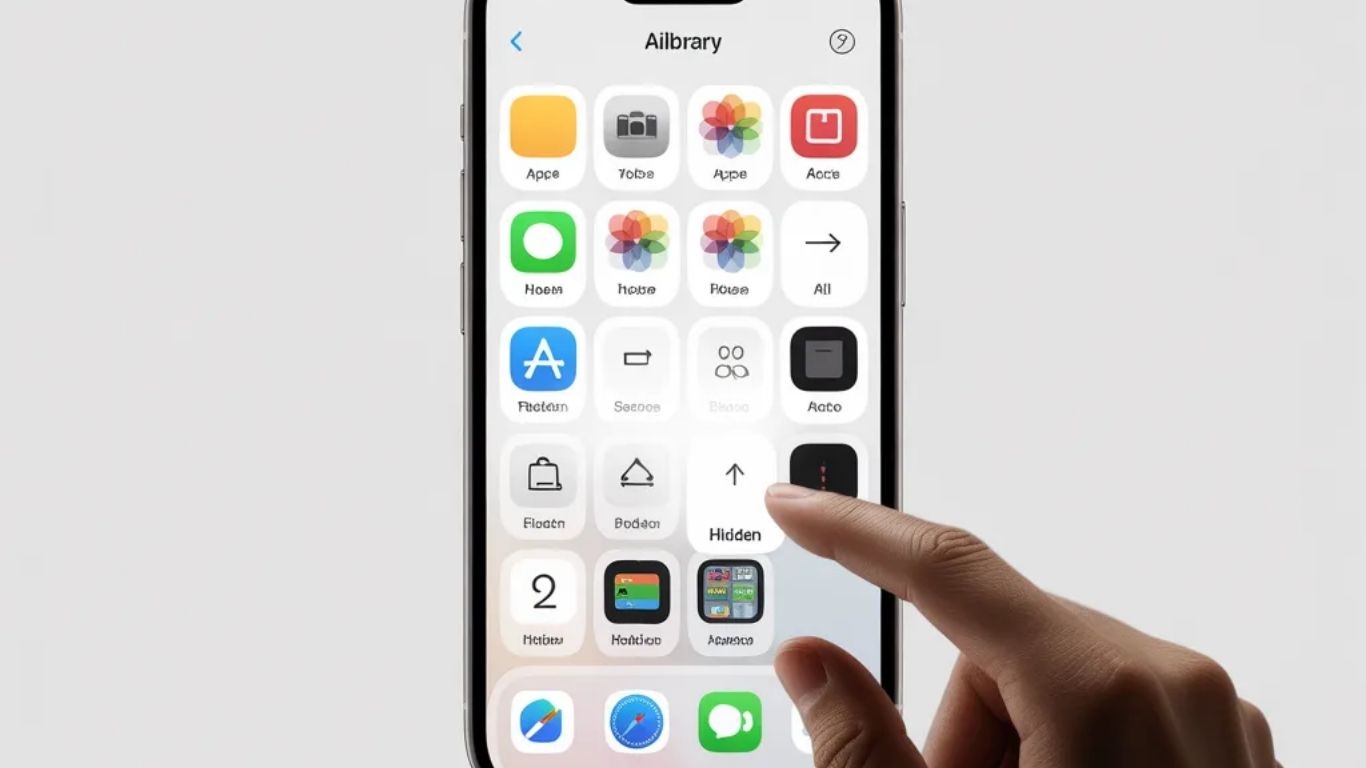
One of the most common reasons apps seem hidden is because they’re in the App Library.
Steps to Find the App in App Library
-
Swipe left on your Home Screen until you reach the App Library
-
Use the search bar at the top
-
Type the app’s name
-
Tap and hold the app icon
-
Select “Add to Home Screen”
That’s it. Simple, right?
The App Library acts like a storage shelf. Even if the app isn’t visible on your Home Screen, it’s probably sitting safely there.
How to Unhide App Using Spotlight Search
Another quick way to learn how to unhide app on iPhone is by using Spotlight.
Steps to Use Spotlight Search
-
Swipe down on your Home Screen
-
Type the app name
-
If it appears, press and hold the icon
-
Tap Add to Home Screen
If it doesn’t appear at all, the app may be restricted or deleted.
How to Restore App to Home Screen
Sometimes you haven’t hidden the app—you’ve only removed it from the Home Screen.
How to Add It Back
-
Find the app in App Library
-
Long press the icon
-
Tap Add to Home Screen
Or simply drag it from App Library to your desired screen.
It’s like putting a book back on your desk after moving it to the shelf.
How to Unhide App Using Screen Time Settings
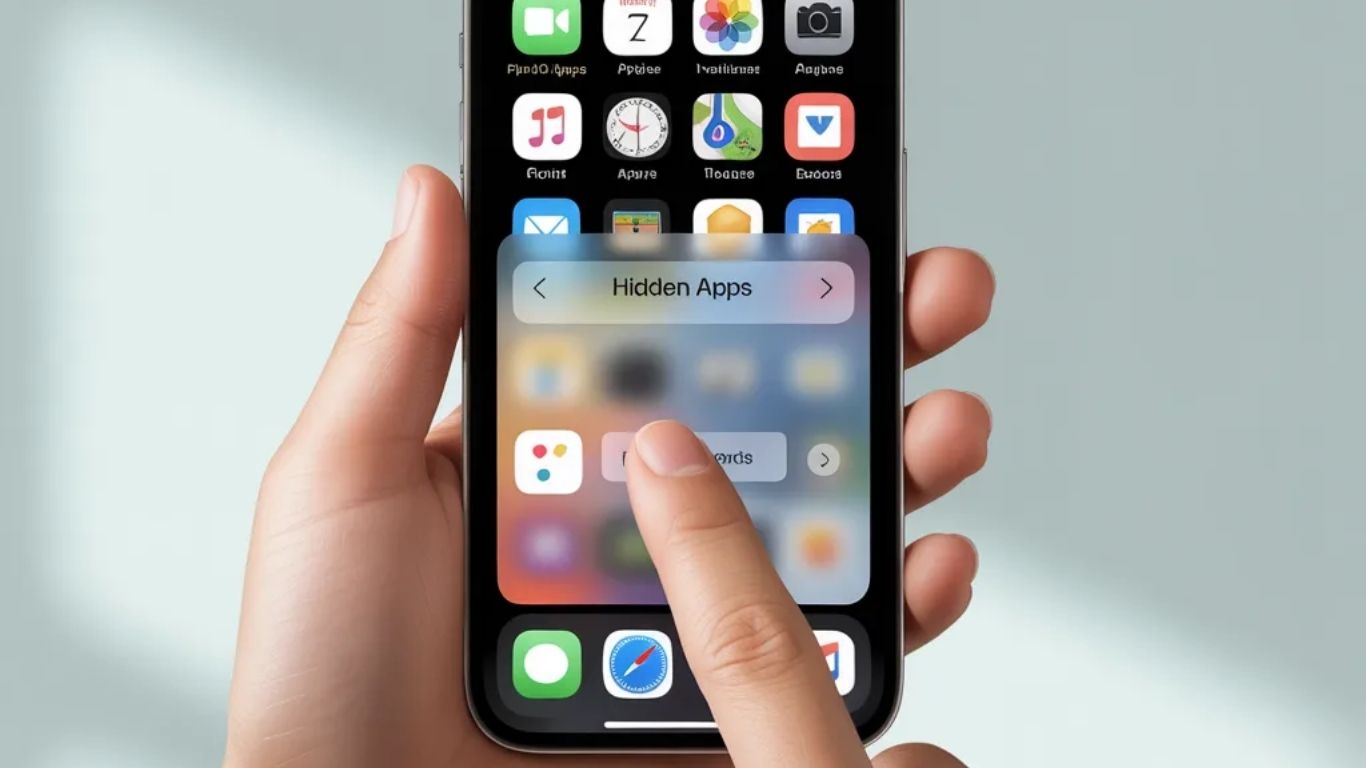
Screen Time restrictions are a common reason apps disappear.
Check Screen Time Settings
-
Open Settings
-
Tap Screen Time
-
Select Content & Privacy Restrictions
-
Tap Allowed Apps
-
Toggle the app back on
If the toggle is off, the app will remain hidden.
This method is especially helpful for parents or shared devices.
How to Check App Store Purchase History
If the app isn’t visible anywhere, it might have been hidden in your App Store purchases.
Steps to Unhide from App Store
-
Open the App Store
-
Tap your profile icon
-
Go to Purchased
-
Tap Hidden Purchases
-
Find the app and download it again
This is another useful trick when figuring out how to unhide app on iPhone.
How to Unhide Hidden Pages on Home Screen
Did you know entire Home Screen pages can be hidden?
Unhide Home Screen Pages
-
Press and hold empty space on Home Screen
-
Tap the dots at the bottom
-
Check any unchecked pages
-
Tap Done
If your app was on a hidden page, this will restore it instantly.
How to Remove App Restrictions
Restrictions can block apps entirely.
Steps to Remove Restrictions
-
Go to Settings
-
Tap Screen Time
-
Select App Limits
-
Remove limits for the app
-
Check Content Restrictions
Sometimes apps are limited by age settings. Make sure the allowed age range includes your app.
How to Unhide Built-in Apple Apps
Some built-in apps can also be removed.
Examples include:
-
Safari
-
Mail
-
Camera
If removed, you can reinstall them from the App Store just like third-party apps.
Simply search for the app and tap download.
How to Reset Home Screen Layout
Still can’t find the app? Try resetting your layout.
Reset Steps
-
Open Settings
-
Tap General
-
Select Transfer or Reset iPhone
-
Tap Reset
-
Choose Reset Home Screen Layout
This restores all default apps to original positions.
How to Prevent Apps from Hiding Again
Once you learn how to unhide app on iPhone, you probably don’t want it happening again.
Here’s how to avoid it:
-
Don’t remove apps from Home Screen unless necessary
-
Disable unnecessary Screen Time restrictions
-
Keep your iOS updated
-
Organize apps in folders instead of hiding them
Think of it like organizing your house—clear systems prevent confusion.
Common Mistakes People Make
Let’s clear up some confusion.
Mistake #1: Assuming the App Is Deleted
Many times it’s just hidden.
Mistake #2: Ignoring Screen Time
Restrictions are often the real cause.
Mistake #3: Forgetting App Library Exists
Since iOS 14, apps automatically go there.
Avoid these and you’ll save time.
When You Should Reinstall the App
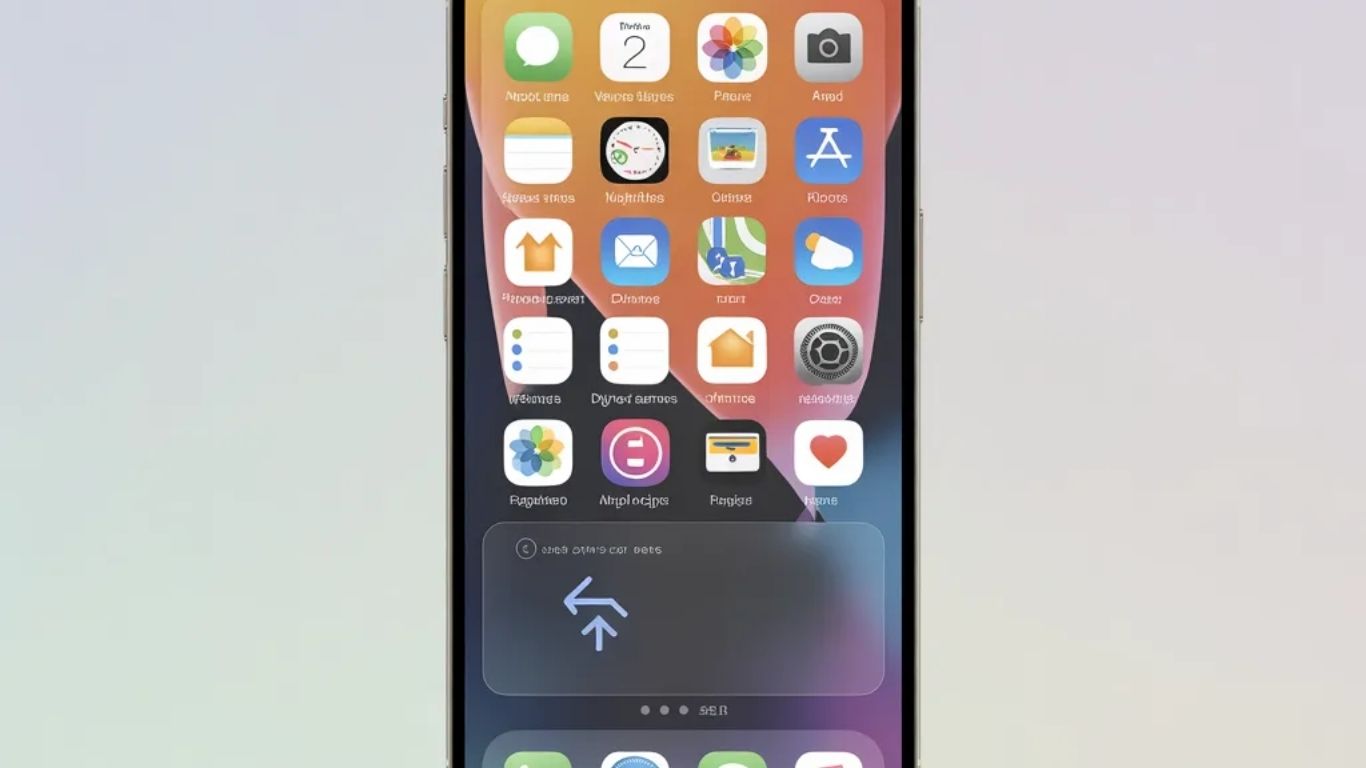
If:
-
The app doesn’t appear in search
-
It’s not in App Library
-
It’s not in Screen Time
-
It’s not in Hidden Purchases
Then it was likely deleted.
Simply open the App Store and reinstall it.
Quick Troubleshooting Checklist
Before panicking, check this list:
-
✔️ Search with Spotlight
-
✔️ Check App Library
-
✔️ Review Screen Time
-
✔️ Check Hidden Purchases
-
✔️ Reset Home Screen
Follow this checklist and you’ll solve the problem in minutes.
Final Thoughts
Learning how to unhide app on iPhone isn’t complicated once you understand how your device organizes apps. Most hidden apps are simply relocated, restricted, or removed from the Home Screen—not deleted.
Your iPhone is smarter than it looks. It rarely loses things; it just reorganizes them. With the methods in this guide, you can quickly bring any hidden app back into view and keep your device organized moving forward.
FAQs About How to Unhide App on iPhone
1. Why can’t I find an app on my iPhone even after searching?
It may be restricted by Screen Time or deleted completely. Check restrictions and App Store purchase history.
2. Can I unhide an app without reinstalling it?
Yes, if it’s in App Library or restricted by settings, you can restore it without reinstalling.
3. How do I know if an app is hidden or deleted?
If it appears in App Library or Spotlight, it’s hidden. If not, it was likely deleted.
4. Does resetting Home Screen delete my apps?
No, it only rearranges them to default positions.
5. Can someone hide apps on my iPhone without me knowing?
Yes, if they have access and enable Screen Time restrictions.
For More Visit: Thecelebrities