


Have you ever looked at a long list in Excel and wondered, “How many unique items are actually here?” Maybe it’s customer names, product IDs, cities, or invoice numbers. You don’t want the total count—you want the distinct count.
If that sounds familiar, you’re in the right place.
Learning how to count distinct values in Excel is one of the most useful skills you can have. It helps you clean data, analyze trends, and make smarter decisions. And the best part? You don’t need to be an Excel expert to do it.
Think of Excel like a giant basket of fruits. If you dump in 50 fruits, you might have 10 apples, 20 bananas, and 20 oranges. Counting distinct values is like asking: “How many different types of fruits do I have?” Not how many total fruits—just how many unique types.
Let’s break it down step by step.
What Does Distinct Mean in Excel?
Before learning how to count distinct values in Excel, let’s clarify something important.
Distinct values mean values that appear only once in your final count, even if they appear multiple times in your data.
Total rows = 4
Distinct values = 3 (John, Sarah, Mike)
Simple, right?
Why Counting Distinct Values Matters
You might be thinking, “Why not just count everything?”
Here’s why distinct counting matters:
-
Count unique customers
-
Track unique products sold
-
Analyze unique visitors
-
Identify repeated entries
It helps you avoid double-counting. And double-counting can lead to wrong decisions.
How to Count Distinct Values in Excel Using Remove Duplicates
This is the easiest method.
Step-by-Step Guide
-
Select your data column
-
Go to the Data tab
-
Click Remove Duplicates
-
Copy the unique list elsewhere
-
Count the remaining rows
⚠️ Warning: This method modifies your data. So always make a copy first.
This approach works well for quick checks.
How to Count Distinct Values Using Advanced Filter
If you don’t want to change your original data, try this.
Steps
-
Select your column
-
Go to Data → Advanced
-
Choose “Copy to another location”
-
Check “Unique records only”
-
Click OK
Excel will create a new list of unique values.
Count those, and you’re done.
How to Count Distinct Values with PivotTables
PivotTables are powerful.
How to Use PivotTable for Distinct Count
-
Select your data
-
Click Insert → PivotTable
-
Check “Add this data to Data Model”
-
Drag the column to Values
-
Change Value Field Settings to Distinct Count
And just like that, Excel calculates distinct values automatically.
PivotTables are like smart assistants—they organize data without much effort from you.
Using COUNTIF Formula for Distinct Count
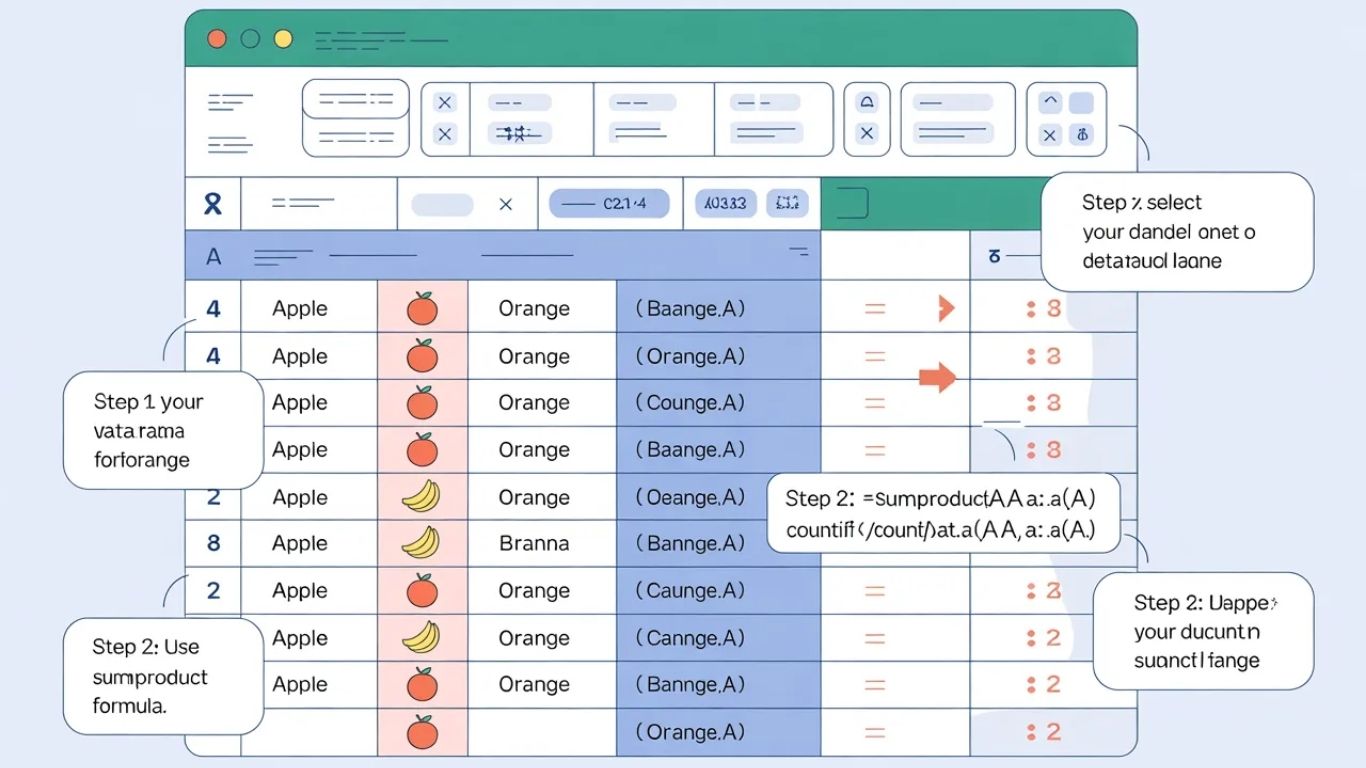
If you prefer formulas, this method works well.
Formula Example
Then press:
-
Ctrl + Shift + Enter (for older Excel versions)
This formula counts unique entries.
It may look complicated, but think of it like telling Excel:
“Only count each value once.”
Using SUM and FREQUENCY Formula
Another formula-based method.
Example Formula
This works best with numbers.
Again, press Ctrl + Shift + Enter if required.
This formula checks how often values appear and only counts the first occurrence.
Using UNIQUE Function in Excel 365
If you’re using Excel 365 or Excel 2021, this is the easiest way.
Step 1: Use UNIQUE Function
Excel automatically generates distinct values.
Step 2: Count Them
That’s it.
When learning how to count distinct values in Excel, this is by far the simplest modern solution.
Counting Distinct Text Values
Text values (like names or cities) require slightly different handling.
The UNIQUE function works perfectly here.
If you’re using older Excel versions, the COUNTIF formula works well for text too.
Remember:
Excel treats “Apple” and “apple” as different unless you adjust settings.
Counting Distinct Numbers Only
Sometimes your data has both text and numbers.
If you only want distinct numbers:
This filters out text automatically.
Counting Distinct Values with Criteria
What if you only want distinct values that meet a condition?
Example:
Count unique customers from “New York”.
Using FILTER + UNIQUE (Excel 365)
This formula filters first, then counts unique values.
This is extremely useful for reports and dashboards.
Common Mistakes to Avoid
When learning how to count distinct values in Excel, avoid these:
Mistake 1: Not Checking for Spaces
Extra spaces make Excel think values are different.
Mistake 2: Case Sensitivity Confusion
“USA” and “usa” may be treated differently.
Mistake 3: Using Remove Duplicates Without Backup
Always copy your data first.
Small mistakes can lead to wrong counts.
Tips to Work Faster in Excel
Want to improve your Excel skills?
-
Use keyboard shortcuts
-
Convert data into tables (Ctrl + T)
-
Keep columns clean
-
Remove blank rows
Excel works best when data is organized.
Think of it like cleaning your kitchen before cooking—it saves time later.
Real-Life Examples of Distinct Counting
Let’s make this practical.
Example 1: Business
A company wants to count unique customers in a month.
Example 2: School
A teacher wants to know how many different students submitted assignments.
Example 3: Marketing
A marketer tracks unique website visitors.
In all these cases, knowing how to count distinct values in Excel makes analysis accurate and reliable.
Final Thoughts
Excel can feel overwhelming at first. But once you understand the basics, it becomes your best data friend.
Learning how to count distinct values in Excel helps you avoid errors, make better reports, and understand your data clearly. Whether you use PivotTables, formulas, or the UNIQUE function, there’s a method for everyone.
Start simple. Practice on small datasets. And remember—Excel rewards clarity and organization.
FAQs About How to Count Distinct Values in Excel
1. What is the easiest way to count distinct values in Excel?
If you use Excel 365, the UNIQUE function combined with COUNTA is the easiest method.
2. Can I count distinct values without formulas?
Yes, you can use Remove Duplicates or PivotTables.
3. Does Excel treat uppercase and lowercase as different values?
By default, Excel does not distinguish between cases in most counting functions.
4. Can I count distinct values based on conditions?
Yes, use FILTER and UNIQUE functions together in Excel 365.
5. What if my distinct count seems incorrect?
Check for extra spaces, hidden characters, or formatting issues.
For More Visit: Thecelebrities