

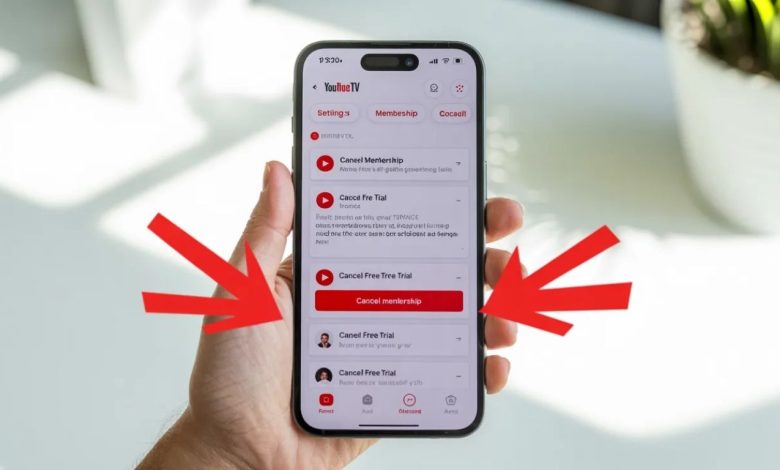
Introduction
Free trials are great, right? They let you explore a service without spending a single dollar. YouTube TV is one of those popular streaming services that offers a free trial so you can test its channels, live TV, and features.
But what happens when the trial is about to end and you decide the service isn’t for you? If you don’t cancel on time, the subscription will automatically turn into a paid plan. That’s why knowing how to cancel YouTube TV free trial is important.
Think of the free trial like borrowing a library book. You can enjoy it for a limited time, but you must return it before the deadline to avoid charges. Canceling the trial works the same way.
In this guide, we’ll walk you through easy steps to cancel your YouTube TV free trial, explain important things to know before canceling, and answer common questions people ask.
What Is YouTube TV Free Trial?
The YouTube TV free trial allows new users to try the streaming service before committing to a paid subscription.
During the trial period, you can access:
-
Live TV channels
-
Sports networks
-
News channels
-
Unlimited cloud DVR storage
-
Streaming on multiple devices
Typically, the trial lasts 5 to 14 days, depending on promotions. It gives you enough time to explore the service and decide whether it suits your entertainment needs.
But remember—once the trial ends, the monthly payment begins automatically unless you cancel.
Why People Cancel YouTube TV Free Trial

Many people start the trial out of curiosity. But after testing it, some decide to cancel. Why?
Here are a few common reasons:
-
The monthly cost feels too high
-
They already have other streaming services
-
Not enough channels they like
-
Just wanted to test the features
Canceling doesn’t mean the service is bad—it simply means it doesn’t fit everyone’s needs.
Things to Know Before Canceling the Trial
Before learning how to cancel YouTube TV free trial, keep a few important things in mind.
You can still watch until the trial ends
Even after canceling, your access continues until the last day of the trial.
No cancellation fees
YouTube TV does not charge any fee for canceling during the free trial.
Your recordings may disappear
If you cancel and don’t return, your saved recordings in the DVR will eventually be deleted.
You can subscribe again later
Canceling the trial doesn’t block you from joining again in the future.
How to Cancel YouTube TV Free Trial on Desktop
Canceling from a computer is one of the easiest ways.
Follow these steps:
-
Go to YouTube TV website
-
Sign in to your account
-
Click your profile picture
-
Select Settings
-
Click Membership
-
Choose Cancel Membership
-
Follow the on-screen instructions
Once completed, your trial will be canceled successfully.
How to Cancel YouTube TV Free Trial on Mobile Phone
Many users prefer managing subscriptions from their phones. Luckily, canceling from mobile is simple.
Steps include:
-
Open the YouTube TV app
-
Tap your profile icon
-
Go to Settings
-
Tap Membership
-
Select Cancel Membership
-
Confirm the cancellation
That’s it. The process takes less than a minute.
How to Cancel YouTube TV Free Trial on iPhone
If you’re using an iPhone, the process is similar but may involve Apple subscription settings.
Follow these steps:
-
Open YouTube TV app
-
Tap your profile icon
-
Go to Settings
-
Select Membership
-
Tap Cancel
Sometimes Apple handles the payment system. If that happens:
-
Open Settings on your iPhone
-
Tap Apple ID
-
Select Subscriptions
-
Choose YouTube TV
-
Tap Cancel Trial
How to Cancel YouTube TV Free Trial on Android

Android users can cancel directly through the app or Google Play.
Steps:
-
Open YouTube TV
-
Tap your profile picture
-
Go to Settings
-
Select Membership
-
Tap Cancel Membership
Or through Google Play:
-
Open Google Play Store
-
Tap Profile
-
Select Payments & Subscriptions
-
Tap Subscriptions
-
Choose YouTube TV
-
Select Cancel
What Happens After You Cancel the Trial
Many people worry that canceling will stop the service immediately.
Good news—it doesn’t.
After cancellation:
-
You keep access until the trial ends
-
No payment will be charged
-
Your account remains active
Think of it like canceling a gym membership before the billing date—you can still use the gym until the period ends.
How to Pause Instead of Canceling YouTube TV
Did you know you can pause your membership instead of canceling it?
This option is useful if:
-
You’re traveling
-
You want a short break
-
You plan to return later
YouTube TV allows you to pause for up to 6 months.
Steps:
-
Go to Settings
-
Click Membership
-
Select Pause Membership
Common Problems When Canceling the Trial
Sometimes users face small issues while trying to cancel.
Common problems include:
Not finding the cancel button
This usually happens if the subscription was purchased through Apple or Google.
Wrong account logged in
Make sure you’re logged into the account used for the trial.
App errors
If the app isn’t working, try canceling through the website instead.
Tips to Avoid Being Charged After Trial
Want to make sure you don’t accidentally pay for the subscription?
Here are some helpful tips:
-
Cancel at least 24 hours before trial ends
-
Set a reminder on your phone
-
Check your email confirmation
-
Verify cancellation in account settings
These small steps can save you from unwanted charges.
How to Contact YouTube TV Support

If something goes wrong during cancellation, you can contact support.
Options include:
-
Live chat
-
Email support
-
Help center guides
Visit the YouTube TV Help Center and choose the support option that works best for you.
Is YouTube TV Worth Keeping After Trial?
Some people start the trial planning to cancel—but end up keeping the service.
Why?
Because YouTube TV offers:
-
85+ live channels
-
Unlimited DVR
-
Sports coverage
-
Family sharing
If you enjoy live TV and sports, it might be worth continuing. Otherwise, canceling before the trial ends is the smart choice.
Conclusion
Knowing how to cancel YouTube TV free trial can save you money and prevent unexpected charges. The process is quick and easy whether you’re using a computer, Android phone, or iPhone.
Remember, canceling the trial doesn’t immediately remove your access—you can still enjoy the service until the trial period finishes.
Free trials are like test drives. You try the car, see how it feels, and then decide if it’s right for you. If YouTube TV doesn’t match your needs, simply cancel before the billing date and move on to another option.
Now that you know the exact steps, managing your subscription will be simple and stress-free.
FAQs
1. Can I cancel YouTube TV free trial anytime?
Yes. You can cancel the trial at any time before it ends, and you won’t be charged.
2. Will I be charged if I cancel YouTube TV free trial early?
No. Canceling during the free trial period prevents any charges.
3. Can I still watch YouTube TV after canceling the trial?
Yes. You can continue watching until the trial period officially ends.
4. How long is the YouTube TV free trial?
The trial usually lasts 5–14 days, depending on promotions and offers.
5. Can I restart the YouTube TV free trial later?
Usually, the free trial is only for new users, so you may not get another free trial after canceling.
For More Visit: Thecelebrities


