Understanding Hidden Rows in Excel
Before learning how to unhide all rows in Excel, it helps to understand what hidden rows actually are.
Hidden rows are rows that still exist in your spreadsheet but are not visible. Excel allows users to hide rows so they don’t appear on the screen or in printed documents.
Key Points About Hidden Rows
The data is not deleted
The rows still exist in the sheet
They can be restored anytime
Think of hidden rows like clothes stored in a closet. They’re still there—you just can’t see them until you open the door.
Why Rows Get Hidden in Excel
Sometimes rows are hidden intentionally, and other times it happens by accident.
Common Reasons Rows Are Hidden
To simplify large spreadsheets
To hide temporary data
To make reports look cleaner
However, if someone else created the spreadsheet, you might not know rows are hidden. That’s when learning how to unhide all rows in Excel becomes essential.
How to Identify Hidden Rows
Hidden rows leave small clues.
Signs That Rows Are Hidden
Row numbers skip (for example: 5 jumps to 10)
A double line appears between rows
Data seems incomplete
If you notice these signs, some rows may be hidden.
How to Unhide All Rows in Excel Quickly
The easiest way to solve the problem is to unhide every row in the worksheet.
Simple Method
- Click the Select All button at the top-left corner of the spreadsheet.
- Right-click any row number.
- Click Unhide.
This instantly reveals every hidden row.
Now you know how to unhide all rows in Excel in just a few seconds.
Using the Mouse to Unhide Rows
Another common method involves selecting rows around the hidden area.
Steps
- Highlight the rows above and below the hidden section.
- Right-click on the selected rows.
- Choose Unhide.
This method works well when only a few rows are hidden.
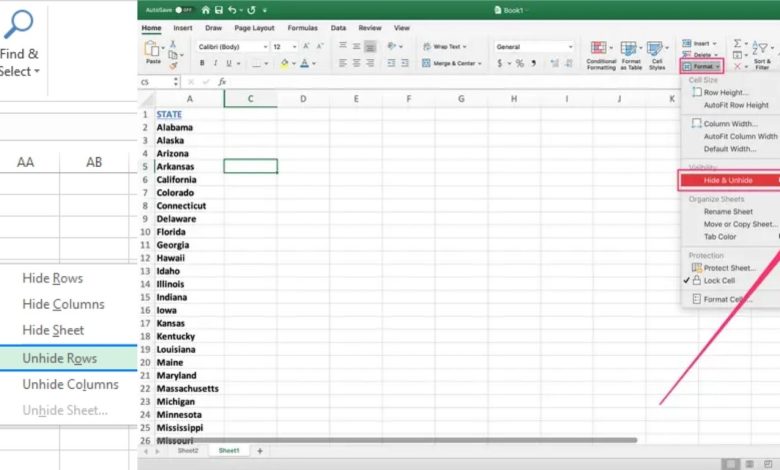
Using the Excel Ribbon to Reveal Rows
The Excel ribbon also provides tools for unhiding rows.
Steps
- Select the entire sheet.
- Go to the Home tab.
- Click Format in the Cells section.
- Choose Hide & Unhide.
- Click Unhide Rows.
This approach is helpful if you prefer using menus rather than right-clicking.
Keyboard Shortcut to Unhide Rows
If you like working faster, keyboard shortcuts can help.
Shortcut Method
- Select the rows around the hidden area.
- Press Ctrl + Shift + 9.
Just like that, the hidden rows reappear.
Shortcuts are like secret doors—they help you move around Excel quickly.
Unhiding Rows When the Entire Sheet Is Hidden
Sometimes rows appear hidden because the entire worksheet view is adjusted.
Steps to Fix It
Select all cells
Open the Format menu
Choose Unhide Rows
This ensures nothing is hidden anywhere in the sheet.
Fixing Rows Hidden by Filters
Filters can also make rows disappear.
When filters are active, Excel only shows rows that match certain conditions.
How to Fix This
- Go to the Data tab.
- Click Clear Filter.
This restores all rows in the spreadsheet.
How to Unhide Multiple Rows at Once
Large spreadsheets may contain dozens of hidden rows.
Instead of revealing them one by one, you can unhide them all.
Steps
Select the entire worksheet
Right-click any row number
Choose Unhide
This is one of the quickest ways to master how to unhide all rows in Excel.
Common Problems When Unhiding Rows
Sometimes unhiding rows doesn’t work immediately.
Possible Reasons
Rows are hidden by filters
Rows are grouped or collapsed
Worksheet is protected
Checking these settings usually solves the issue.
Tips to Prevent Rows from Getting Hidden
Prevention can save time and frustration.
Helpful Tips
Use filters carefully
Avoid accidental row hiding shortcuts
Label sections clearly
Good spreadsheet organization reduces confusion.
Excel Features That Affect Row Visibility
Several Excel tools affect whether rows appear or disappear.
Examples
Filters
Grouping
Manual hiding
Understanding these features helps you manage data more effectively.
Practical Example of Unhiding Rows
Imagine you are reviewing a sales spreadsheet.
The numbers jump from row 15 to row 30. That means rows 16–29 are hidden.
By selecting the surrounding rows and clicking Unhide, you can reveal the missing data.
This simple action restores the full dataset and ensures accurate calculations.
Best Practices for Managing Excel Data
Working with Excel becomes easier when your spreadsheet stays organized.
Best Practices
Keep spreadsheets clean and structured
Avoid hiding important data
Document changes clearly
Think of your spreadsheet like a well-organized library. When everything is in the right place, finding information becomes effortless.
Conclusion
Learning how to unhide all rows in Excel is a valuable skill for anyone who works with spreadsheets. Hidden rows can make data confusing and incomplete, but the solution is usually quick and simple.
By using methods like right-clicking, keyboard shortcuts, or the Excel ribbon, you can easily restore hidden rows and view your full dataset again.
Just remember: hidden rows are not gone—they’re simply out of sight. With a few clicks, you can bring them back and keep your spreadsheet accurate and organized.
FAQs
1. How do I unhide all rows in Excel at once?
Select the entire worksheet, right-click any row number, and click Unhide to reveal all hidden rows.
2. Why are some rows hidden in Excel?
Rows may be hidden manually, filtered, or grouped to simplify the appearance of large spreadsheets.
3. What is the shortcut to unhide rows in Excel?
Press Ctrl + Shift + 9 after selecting the rows around the hidden area.
4. Can filters hide rows in Excel?
Yes. Filters temporarily hide rows that do not match selected conditions.
5. How can I tell if rows are hidden in Excel?
You may notice skipped row numbers or double lines between rows, indicating hidden rows.
For More Visit: Thecelebrities